
Losing your iPhone is stressful, whether it slipped between the sofa cushions, was left in a taxi, or was stolen. Find My is Apple’s built-in tool that shows where your iPhone is on a map, makes it play a sound, locks it, and can even erase it remotely.
But it only helps if it’s turned on before you lose the phone. This guide shows you how to set it up correctly, how to locate your iPhone from your Mac or any browser, and what to do if it’s lost or stolen.
Quick Answer
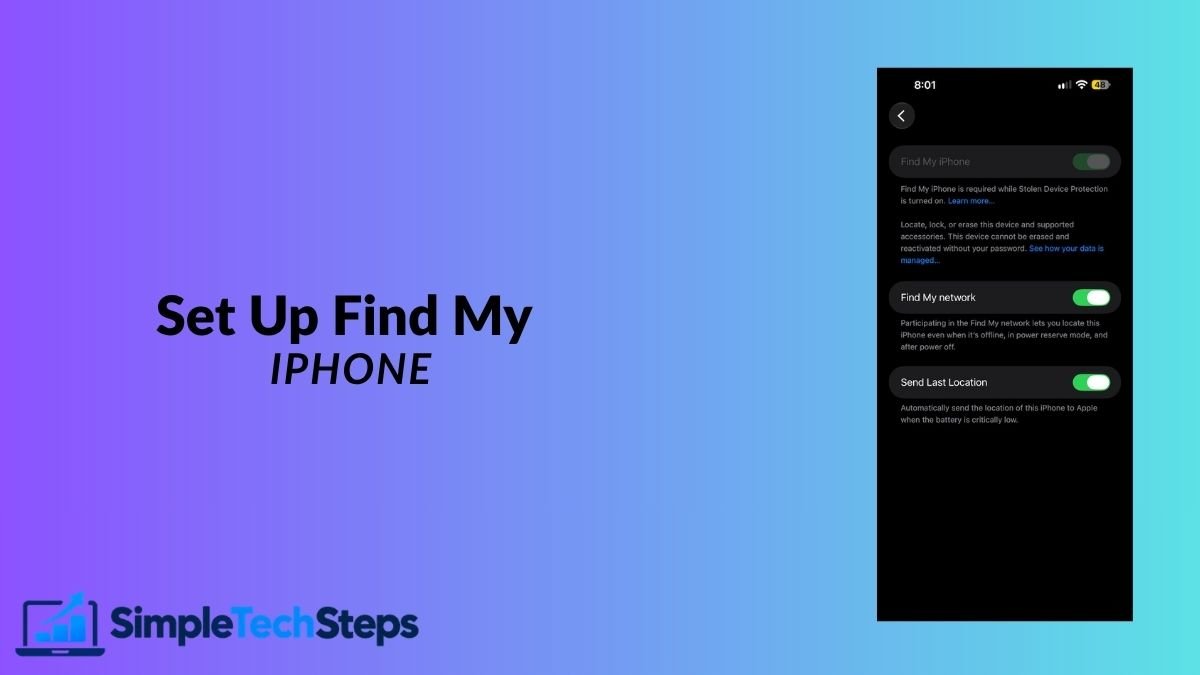
To set up Find My iPhone, go to Settings → [your name] → Find My → Find My iPhone and turn on Find My iPhone, Find My network, and Send Last Location. To find a lost iPhone, open the Find My app on your Mac or go to icloud.com/find and sign in with your Apple Account.
Step 1: Turn On Find My iPhone
- Open Settings.
- Tap your name at the top.
- Tap Find My.
- Tap Find My iPhone.
- Turn on Find My iPhone.
If it’s already on, you’ll see it switched on (green). Turning it on also enables Activation Lock, which stops anyone else from setting up your iPhone without your Apple Account password, even after erasing it.

When I checked my iPhone 14 Pro Max, Find My iPhone was already on.
Step 2: Turn On Find My Network and Send Last Location
On the same Find My iPhone screen, turn on two more options:
Find My network: lets your iPhone be located even when it’s offline, by using nearby Apple devices to report its position anonymously. On recent iPhones, it can also help locate the phone for a while after it’s turned off or the battery runs out.
Send Last Location: automatically sends your iPhone’s location to Apple when the battery is critically low. If the phone dies, you can still see where it was last.
Both are important. Without them, a phone with no signal or no battery is much harder to find.

Step 3: Locate Your iPhone from Your Mac
If you have a Mac signed in to the same Apple Account, finding your iPhone takes seconds.
- Open the Find My app on your Mac (press Command + Space, type “Find My”).
- Click the Devices tab.
- Select your iPhone in the list.
- Its location appears on the map, with the time it was last updated.
Click the (i) button next to your iPhone to see the available actions.

Step 4: Locate Your iPhone from Any Browser
If you don’t have another Apple device with you:
- Go to icloud.com/find on any computer or phone.
- Sign in with your Apple Account email and password.
- Select your iPhone from All Devices.
Find My on iCloud.com lets you locate a device without entering a verification code, which matters because your trusted device may be the phone you’ve lost.
Step 5: Make Your iPhone Play a Sound
If the map shows your iPhone is at home, but you can’t find it:
- Select your iPhone in Find My.
- Choose Play Sound.
Your iPhone plays a loud sound, even if it’s on silent, until you find it and unlock it or tap to stop it.
Step 6: Use Lost Mode if Your iPhone Is Missing
Lost Mode locks your iPhone, shows a message with your contact number on the screen, and keeps tracking its location.
- Select your iPhone in Find My.
- Choose Mark As Lost (or Lost Mode).
- Click Continue.
- Enter a phone number where you can be reached.
- Type a short message, such as “This phone is lost. Please call me.”
- Click Activate.
Apple Pay cards are suspended while Lost Mode is on, protecting your payments.

Step 7: Erase Your iPhone (Last Resort)
If you believe your iPhone won’t be recovered, for example after a theft, you can erase it remotely to protect your data.
- Select your iPhone in Find My.
- Choose Erase This Device.
- Confirm with your Apple Account password.
Important: after erasing, you can no longer locate the phone. Activation Lock stays on, so the thief can’t use it with their own account. Do this only after you’ve tried Lost Mode, and only if you have a recent backup. That’s why it’s essential to regularly back up your iPhone to iCloud.
Turn On Stolen Device Protection
This extra security feature protects your iPhone if a thief learns your passcode. When your iPhone is away from familiar places like home or work, sensitive actions such as changing your Apple Account password require Face ID, and some also require a one-hour security delay.
- Go to Settings → Face ID & Passcode.
- Enter your passcode.
- Turn on Stolen Device Protection.

What to Do if Your iPhone Is Stolen
- Don’t try to recover it yourself. If Find My shows it at an unknown address, contact the police instead.
- Turn on Lost Mode immediately.
- Report it to the police and give them the serial number (found on the box or at appleid.apple.com under Devices).
- Contact your mobile provider to block the SIM card.
- Change your Apple Account password from another device.
- Erase the device only if recovery seems unlikely.
Securing your account with two-factor authentication for your Apple Account makes it much harder for a thief to get into your data.
Tips
- Check that Find My is on today, not after you lose your phone.
- Make sure Send Last Location is on, since a dead battery is the most common reason a phone can’t be found.
- Learn your Apple Account password by heart, as you’ll need it on a borrowed device.
- Keep your battery healthy so the phone stays trackable longer. Our guide on how to make your iPhone battery last longer helps.
- Add your Mac to Find My too: System Settings → [your name] → iCloud → Find My Mac.
Frequently Asked Questions
Can I find my iPhone if it’s turned off?
Often, yes. On recent iPhones with Find My network enabled, you may be able to locate it for a period after it’s turned off. Otherwise, you’ll see its last known location.
Can someone turn off Find My without my password?
No. Turning off Find My requires your Apple Account password.
Does Find My drain my battery?
No. It uses very little power and doesn’t need to be switched off.
Can I find my iPhone without another Apple device?
Yes. Go to icloud.com/find on any browser.
What happens if I erase my iPhone remotely?
All data is deleted and you can no longer track it, but Activation Lock keeps it locked to your account.
Conclusion
Find My only works if you set it up in advance. Take two minutes now to turn on Find My iPhone, Find My network, Send Last Location, and Stolen Device Protection. If your phone is ever lost, you’ll be able to find it, lock it, or protect your data from your Mac or any browser.