
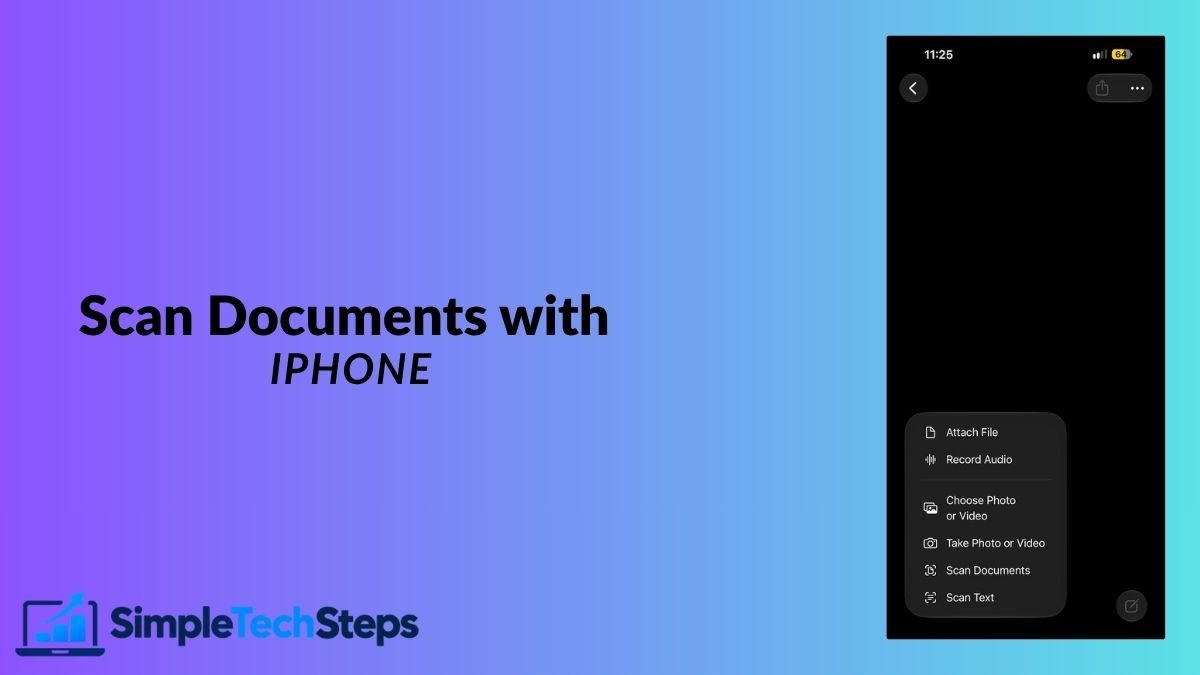
You don’t need a scanner, or a separate app, to turn paper into a clean digital copy. Your iPhone has a document scanner built into the Notes and Files apps. It finds the edges of the page, straightens it, and removes shadows automatically.
This guide shows you how to scan, save as a PDF, and send it to your Mac, plus how to get a clear result every time.
Quick Answer
Open Notes, start a new note, tap the camera icon, and choose Scan Documents. Hold your iPhone over the page until it captures automatically, then tap Save. To get the PDF, open the scan, tap the share button, and choose Save to Files.
Method 1: Scan with the Notes App
- Open Notes and tap the new note button.
- Tap the camera icon (in newer versions of iOS it’s inside the paperclip menu) and choose Scan Documents.
- Place the page on a flat surface and hold your iPhone above it.
- Wait for the yellow box to fit around the page. In Auto mode, your iPhone captures it automatically when it’s steady.
- To scan more pages, repeat with the next page.
- Tap Save when you’re finished.
The scan appears inside the note.

Adjust the Scan
After capturing a page, you can improve it before saving.
- Crop: tap the scan and drag the corners to the exact edges.
- Filter: tap the filter icon to choose Color, Grayscale, Black & White, or Photo. Black & White is best for text, and Color is best for documents with logos or stamps.
- Rotate: turn the page if it came out sideways.
- Retake: tap Retake to scan that page again.

Method 2: Scan with the Files App
The Files app saves the scan directly as a PDF, which is quicker if that’s your goal.
- Open Files.
- Go to the folder where you want to save it.
- Tap the three-dot menu at the top right.
- Tap Scan Documents.
- Scan the page, tap Save, and give the file a name.

Save a Scan from Notes as a PDF
- Open the note and tap the scanned document.
- Tap the share button.
- Choose Save to Files, pick a location, and tap Save.
You can also share it straight to Mail or Messages from the same menu.
Send the Scan to Your Mac
- AirDrop: open the PDF, tap the share button, and choose your Mac. Our guide to AirDrop between your iPhone and Mac covers setup and fixes.
- iCloud Notes: if Notes is synced with iCloud, the scan appears in the Notes app on your Mac automatically.
- Files and iCloud Drive: save the PDF in iCloud Drive and open it from Finder on your Mac.
If you later need to merge separate scans into a single document on your computer, see our guide on how to combine PDF files on Mac.
Tips for a Clear Scan
- Use good, even light and avoid your own shadow falling on the page.
- Place the page on a dark, plain surface, so the edges are detected clearly.
- Hold the iPhone parallel to the page and keep it steady.
- Flatten curled or folded pages before scanning.
- Wipe your camera lens first. A smudge is a common cause of soft, blurry scans.
- Use Black & White for text to keep file sizes small and text sharp.
Protect Sensitive Scans
Scans of IDs, bank statements, or contracts are private.
- Open the note containing the scan.
- Tap the three-dot menu.
- Tap Lock and set a password or use Face ID.
Delete scans you no longer need, since they take space. Our guide on how to free up storage on your iPhone shows how to find large files quickly.
Fixing Common Problems
The scanner doesn’t detect the page. Place the page on a contrasting surface, add light, or tap the shutter button to capture manually.
The scan is blurry. Clean the lens, hold the phone steady, and make sure there’s enough light.
Text looks grey. Change the filter to Black & White or Color.
I can’t find my scan. Check inside the note you created, or in the Files location you chose.
Frequently Asked Questions
Is the iPhone scanner free?
Yes. It’s built into iOS at no cost.
Can I scan multiple pages into one PDF?
Yes. Keep scanning pages before tapping Save, and they stay together in a single document.
Are scans saved as PDF or as images?
Notes keeps scans inside the note, and you can export them as a PDF. Files saves directly as a PDF.
Can my iPhone read the text in a scan?
Yes. You can often tap and hold text in a scan to select and copy it.
Is it good enough for official documents?
For many uses, yes. Some offices require original copies, so check their requirements first.
Conclusion
Open Notes or Files, choose Scan Documents, and let your iPhone find the page. Use Black & White for text, good light, and a dark surface, and save the result as a PDF. You’ll never need a separate scanner for everyday paperwork again.