

Most Mac users drag an app to the Bin and think it’s gone. But macOS stores support files, caches, preferences, and logs in hidden folders that the Bin method never touches. Over months and years, these leftovers from dozens of uninstalled apps can quietly take up several gigabytes.
This guide covers every uninstall method, when to use each one, and how to find and remove the files that are always left behind.
Quick Answer
To fully uninstall an app on Mac, drag it from the Applications folder to the Bin, then manually delete its leftover files from ~/Library/Application Support, ~/Library/Preferences, and ~/Library/Caches. For App Store apps, use Launchpad to delete them, which removes more files automatically.
Method 1: Drag to Bin (Standard Apps)
This is the method most people know, and it works for most regular apps downloaded from a website.
- Open Finder.
- Click Applications in the sidebar.
- Find the app.
- Drag it to the Bin in the Dock, or right-click and choose Move to Bin.
- Right-click the Bin and choose Empty Bin.

I uninstalled several apps I hadn’t used in months this way and freed up about 3 GB immediately.
This removes the app itself but not its support files. Follow the “Remove Leftover Files” section below to clean up the rest.
Method 2: Launchpad (App Store Apps)
App Store apps can be deleted from Launchpad, which removes more cleanly.
- Click Launchpad in the Dock (the rocket icon), or press F4.
- Click and hold any app until they all start wiggling.
- Click the X on the app you want to remove.
- Click Delete to confirm.
Apps without an X cannot be deleted this way, either because they’re system apps or they weren’t installed from the App Store.
Method 3: Use the App’s Own Uninstaller
Some apps, particularly antivirus tools, virtual machines, and creative software, come with their own uninstaller. These are always the best choice because the developer knows exactly where every file was placed.
Check inside the app’s folder in Applications, look in the same Downloads folder where you got the installer, or visit the developer’s website. Common examples are Adobe apps, Parallels Desktop, and Avast. If one exists, always use it first.
Method 4: System Settings Storage (Another Way In)
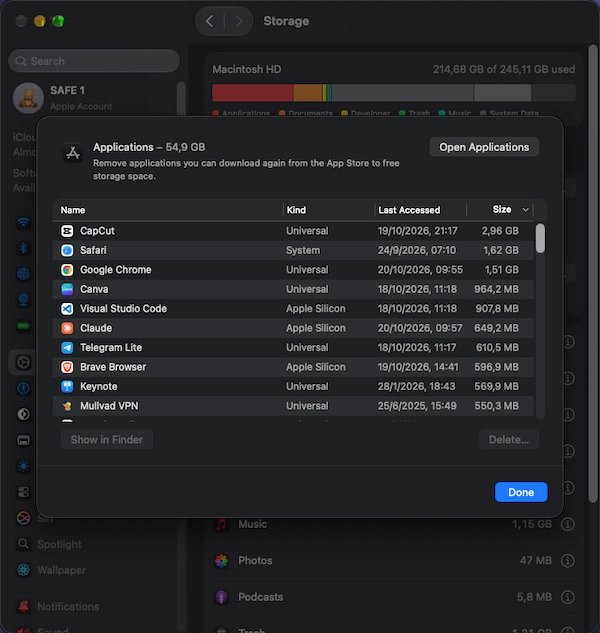
- Open System Settings → General → Storage.
- Scroll down or click the information icon next to Applications.
- Find the app and click the Delete button next to it.
This is essentially the same as dragging to the Bin, just a different way to reach the app list.
Remove Leftover Files (The Important Part)
After removing the app itself with any method above, these hidden folders usually still hold files. Open each location and delete anything named after the app you removed.
Open the hidden Library folder:
- In Finder, hold the Option key and click the Go menu.
- Library appears in the menu; click it.
This opens ~/Library (your personal Library). Work through these three folders:
~/Library/Application Support
Files and data the app stored, often the largest leftovers.
~/Library/Preferences
Settings files, usually small but worth removing.
~/Library/Caches
Temporary files the app created. Safe to delete.
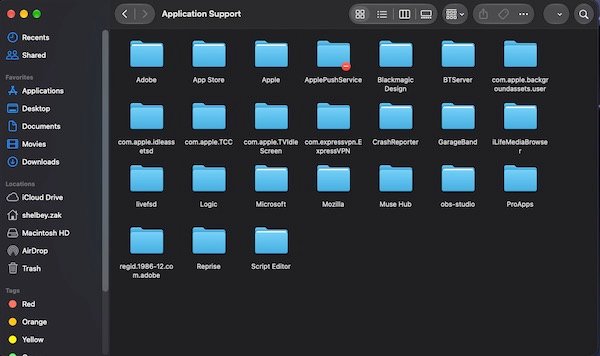
In each folder, look for any item named after the app or its developer and move it to the Bin. Then empty the Bin.
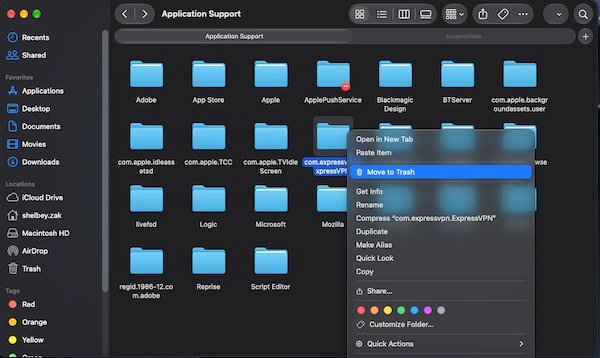
Also check ~/Library/Logs and /Library/Application Support (the system-level Library, without the tilde) for apps that installed at the system level, such as antivirus software.
How to Search for All Leftover Files at Once
If you want to be thorough:
- Open Finder.
- Press Command + F to open a search.
- In the search bar, type the app’s name.
- Click This Mac to search everywhere.
- In the filters, change Kind to Any and look for anything related.
The Library folders are not searched by default, so also search inside each one manually for the app’s developer name, not just the app name.
When to Use a Third-Party Uninstaller
If manually checking folders feels like too much work, an app like AppCleaner (free) or CleanMyMac (paid) finds leftover files automatically. These are legitimate tools; just download them from the developer’s site or the Mac App Store, not from random sites.
Be cautious with any app that shows alarming messages about how dirty your Mac is, since that’s usually a sales tactic. If you’re happy checking the Library manually, you don’t need any extra tool.
Dealing With Apps That Won’t Uninstall
App still running: you can’t delete an app while it’s open. Quit it first with Command + Q, or use Option + Command + Esc to force-quit it.
Permission error: some apps require administrator permission. Try right-clicking and choosing Move to Bin while holding Option, or enter your password when prompted.
System apps: apps like Safari, Mail, and Maps are part of macOS and cannot be uninstalled. Some can be hidden but not removed.
Tips for Keeping Things Clean
- Before installing any new app, ask whether you actually need it. An app you never install leaves nothing behind.
- When trying an app you’re unsure about, note the name so you can search for all its files if you later decide to remove it.
- Empty the Bin regularly; deleted apps sit there taking space until you do.
- Check System Settings → Storage → Applications occasionally to spot large apps you forgot about.
Frequently Asked Questions
Does dragging an app to the Bin remove everything?
No. It removes the app itself, but support files, caches, and preferences stay in the Library until you delete them manually.
What if I delete the wrong file from the Library?
The Bin holds everything until you empty it, so you can put files back if you make a mistake. Empty the Bin only when you’re sure.
Is it safe to delete everything in ~/Library/Caches?
Generally yes. Cache files are temporary and rebuild themselves when needed. Deleting them frees space with no permanent loss.
Do App Store uninstalls remove leftover files?
More than dragging to the Bin, but not completely. Checking the Library afterwards is still good practice.
Why does a just-deleted app still appear in Spotlight?
Spotlight re-indexes after a moment. Restart your Mac if it persists.
Conclusion
Drag to the Bin plus a quick Library clean-up is all you need for most apps. Make it a habit to check those three Library folders whenever you uninstall something, and your Mac will stay lean.
Our guide on how to speed up a slow Mac explains what else slows things down, and you can also follow our full guide on how to free up storage on your Mac to recover even more space.