

A Mac that takes minutes to start, shows the spinning colour wheel constantly, or lags when switching apps is frustrating, especially when the hardware is still perfectly good. In most cases the cause isn’t age. It’s too many apps launching at startup, a nearly full drive, or one background process quietly eating your processor.
This guide walks through ten fixes in the order that makes sense, starting with finding the real cause rather than guessing.
Quick Answer
To speed up a slow Mac, open Activity Monitor to find what’s using your CPU and memory, remove unnecessary startup items in System Settings → General → Login Items, free up disk space so at least 10–15% remains, close unused browser tabs, and restart your Mac regularly. These steps solve most slowdowns without any extra software.
Step 1: Find Out What’s Actually Slowing Your Mac
Before changing settings, identify the cause. Activity Monitor is built into macOS and shows exactly what’s using your resources.
- Press Command + Space to open Spotlight.
- Type Activity Monitor and press Return.
- Click the CPU tab.
- Click the % CPU column header to sort from highest to lowest.
Anything sitting at a high percentage for a long time is your culprit. Browsers with many tabs, video calls, cloud sync tools, and antivirus software are the usual suspects.
To close a stuck process, select it and click the X button in the toolbar, then choose Quit.

On my Mac, WindowServer was using more than 28% of the CPU.
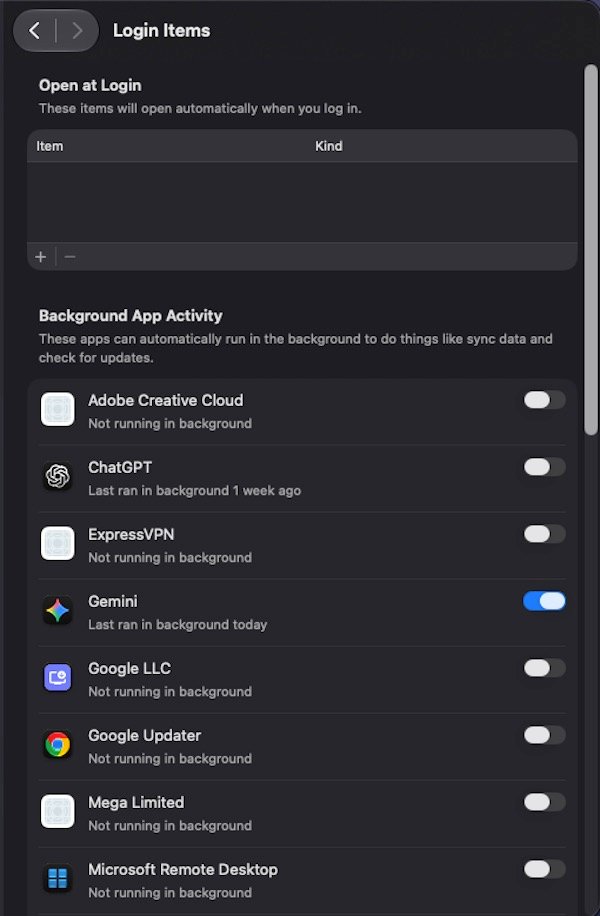
Fix 1: Remove Apps That Launch at Startup
Every app that opens automatically makes your Mac slower to start and keeps using resources all day.
- Open System Settings.
- Click General in the sidebar.
- Click Login Items & Extensions.
- Under Open at Login, select any app you don’t need and click the minus (–) button.
- Below that, look at Allow in the Background and turn off anything you don’t recognise as essential.
Be careful in the background section: leave anything from Apple, your printer, or your backup software turned on.
Fix 2: Quit Apps You’re Not Using
Closing a window isn’t the same as quitting an app on a Mac. The app keeps running in the background with the dot under its Dock icon.
- Click the app in the Dock, or press Command + Tab to see open apps.
- Press Command + Q to quit it properly.
If an app is frozen, press Option + Command + Esc, select it, and click Force Quit.
Fix 3: Free Up Disk Space
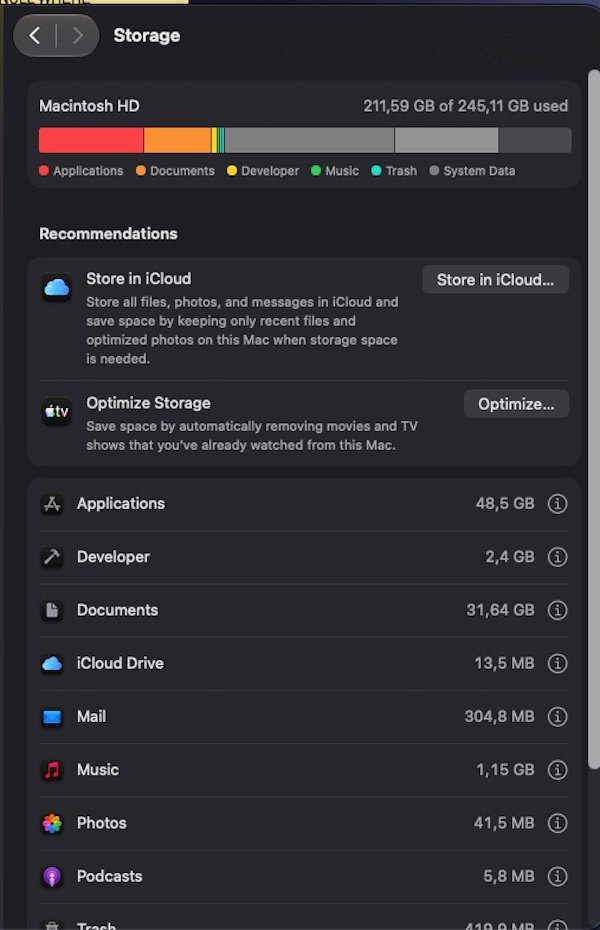
macOS needs free space to work properly. When your drive is nearly full, everything slows down because the system has no room for temporary files and memory swapping.
- Open System Settings → General → Storage.
- Wait for the bar to calculate.
- Click the information icon next to categories like Documents, Applications, and iOS Files to see what’s taking space.
- Use the recommendations at the top, such as emptying the Bin automatically.
Aim to keep at least 10–15% of your drive free. Large culprits are usually old iPhone backups, downloaded videos, and the Downloads folder itself.
Don’t forget to empty the Bin afterwards, since deleted files still occupy space until you do.
Fix 4: Check Your Memory Pressure
RAM problems show up differently from CPU problems, so check them separately.
- In Activity Monitor, click the Memory tab.
- Look at the Memory Pressure graph at the bottom.
Green means your Mac has enough memory. Yellow means it’s under strain. Red means your Mac is struggling and relying heavily on the drive instead of RAM, which is exactly when everything feels slow.
If it’s yellow or red, quit the apps using the most memory in the list above the graph, especially browsers.

Fix 5: Tame Your Browser
For most people, the browser is the single heaviest app on the Mac.
- Close tabs you’re not using. Each one uses memory.
- Remove extensions you don’t need: in Safari, go to Safari → Settings → Extensions; in Chrome, open chrome://extensions.
- Clear old history and website data occasionally.
- Avoid keeping dozens of tabs open permanently; bookmark them instead.
Fix 6: Restart Your Mac Regularly
Many people never shut their Mac down, just close the lid. Over days or weeks, memory fills with leftover processes.
- Click the Apple menu.
- Choose Restart.
- Untick Reopen windows when logging back in so you start clean.
A restart once or twice a week prevents a surprising number of slowdowns.
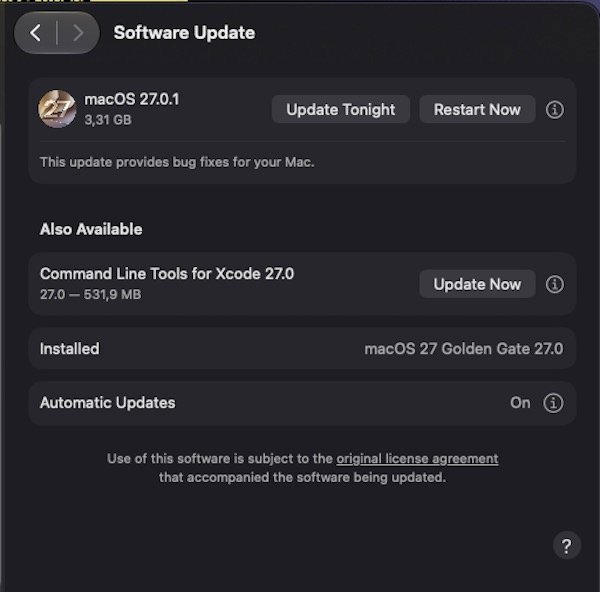
Fix 7: Update macOS
Updates include performance improvements and fixes for bugs that cause slowdowns.
- Open System Settings → General → Software Update.
- Install any available update.
- Keep your Mac plugged in during the update.
Right after a major update, your Mac may feel slower for a day while it re-indexes files in the background. Give it time before judging.
Fix 8: Reduce Visual Effects
Animations use graphics resources, and turning them down helps older Macs noticeably.
- Open System Settings → Accessibility → Display.
- Turn on Reduce motion.
- Turn on Reduce transparency.
You can also open System Settings → Desktop & Dock and turn off Animate opening applications and set Minimise windows using to Scale effect.
Fix 9: Clean Up Your Desktop
Every icon on your Desktop is rendered as a live preview, so a Desktop covered in files genuinely slows things down.
- Create a folder in Documents called something like “Desktop Archive”.
- Move your Desktop files into it.
- Alternatively, right-click the Desktop and choose Use Stacks to group everything automatically.
Fix 10: Check Your Mac’s Storage Type and Age
If your Mac still uses a traditional spinning hard drive rather than an SSD, that’s the main bottleneck, and no software setting will fix it. Upgrading to an SSD, where possible, transforms performance more than anything else on this list.
To check: click the Apple menu → About This Mac → More Info → Storage. Also look at how much RAM you have. On modern macOS, 8 GB is the practical minimum, and heavy multitasking benefits from 16 GB.
Things You Should Not Do
- Don’t install “Mac cleaner” apps from unknown developers. Many are aggressive, show fake warnings, and some are malware. macOS already includes the storage tools you need.
- Don’t delete system files or anything in the Library folder unless you know exactly what it does.
- Don’t disable Spotlight indexing permanently; it slows down your searches for little gain.
Frequently Asked Questions
Why is my Mac slow after an update?
macOS re-indexes files and optimises the system in the background after an update. This usually settles within a day or two.
How much free disk space does a Mac need?
Keep at least 10–15% of the drive free. Below that, performance drops noticeably.
Does the spinning colour wheel mean my Mac is broken?
No. It means an app is busy or waiting. If it happens constantly in one app, that app is the problem; if it happens everywhere, check Activity Monitor.
Do I need antivirus on a Mac to keep it fast?
macOS has built-in protection. Third-party antivirus often uses significant resources and can itself be a cause of slowdowns.
Will resetting my Mac make it faster?
A clean reinstall can help if the system is badly cluttered, but try everything in this guide first, and always back up before erasing anything.
Conclusion
Start with Activity Monitor to find the real cause, then clear your startup items, free up disk space, and restart regularly. Those four steps fix the majority of slow Macs without spending anything.
If you’re also running low on space elsewhere in your Apple setup, our guide on how to free up storage on your iPhone uses the same approach: find what’s using space first, then clean up what you actually don’t need.