
Seeing the “iPhone Storage Almost Full” message is frustrating. Your phone gets slower, you can’t take new photos, and updates refuse to install. The good news is that you can usually recover several gigabytes in a few minutes without deleting anything important.
In this guide, you’ll learn how to check what’s using your storage and nine simple ways to free up space on your iPhone, step by step.
Quick Answer
To free up storage on iPhone, go to Settings → General → iPhone Storage, check which apps use the most space, then offload unused apps, empty the Recently Deleted photo album, delete large message attachments, and clear app caches like Safari and WhatsApp.
Step 1: Check What’s Using Your Storage
Before deleting anything, see what’s actually taking up space.
- Open Settings.
- Tap General.
- Tap iPhone Storage.
- Wait a few seconds for the colored bar to load.
You’ll see your total storage used and a list of apps sorted from largest to smallest. iPhone may also show recommendations at the top to save space quickly.
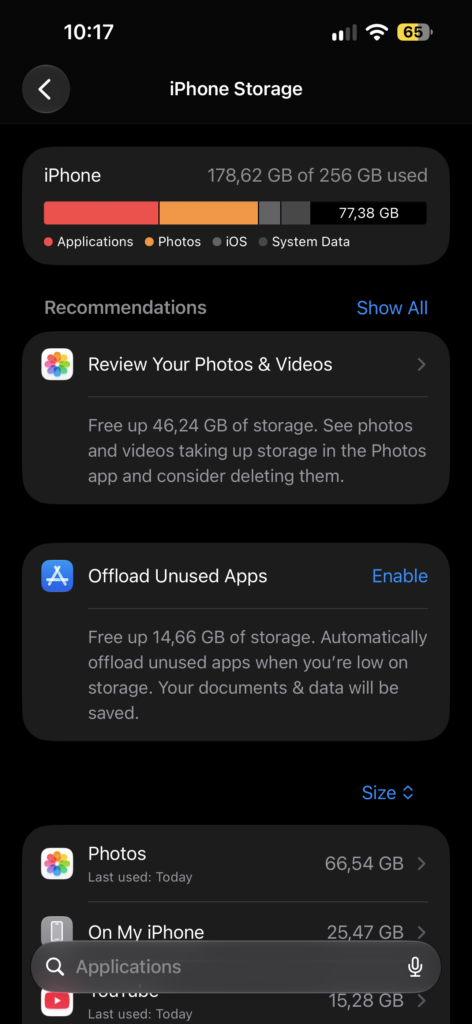
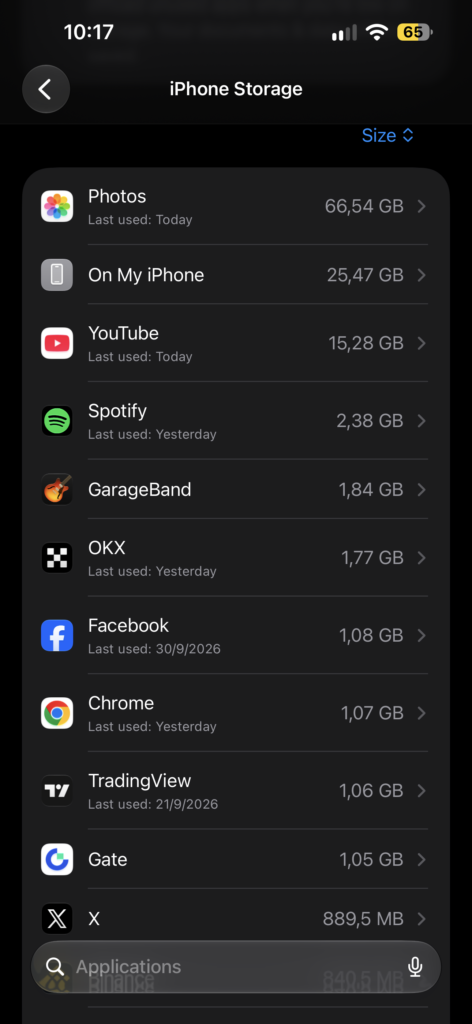
On my iPhone, the biggest apps were Photos, On My iPhone, and YouTube.
Method 1: Offload Unused Apps
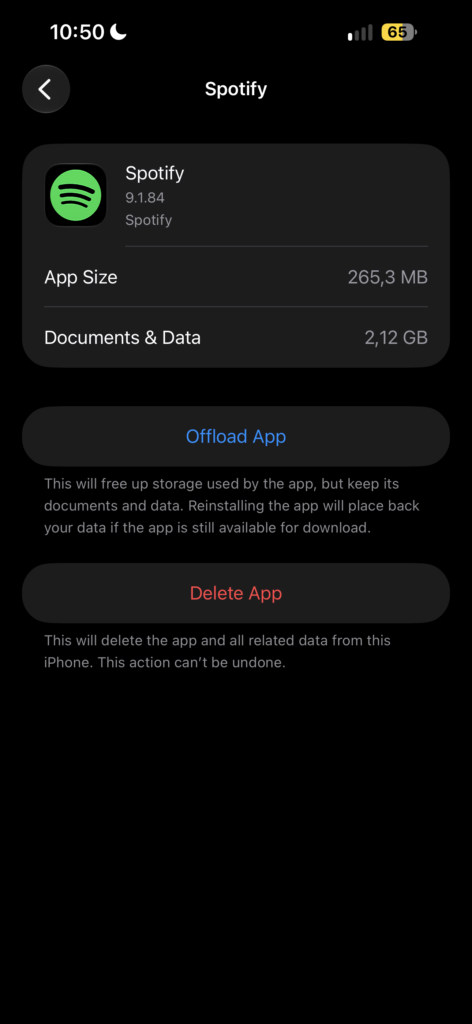
Offloading removes an app but keeps its documents and data. If you reinstall it later, everything comes back as it was.
- Go to Settings → General → iPhone Storage.
- Tap an app you rarely use.
- Tap Offload App, then confirm.
You can also let your iPhone do this automatically: in the recommendations at the top of the iPhone Storage screen, tap Enable next to Offload Unused Apps.
Method 2: Delete Apps You Don’t Need
If you have apps you’ll never use again, delete them completely.
- In iPhone Storage, tap the app.
- Tap Delete App, then confirm.
Games are often the biggest apps, so check them first.
Method 3: Empty the “Recently Deleted” Photo Album
When you delete photos, iPhone keeps them for 30 days in a hidden album, and they still use storage.
- Open the Photos app.
- Scroll down to Utilities and tap Recently Deleted.
- Unlock with Face ID if asked.
- Tap Select, then Delete All, and confirm.
Only do this if you’re sure you don’t need those photos.

Method 4: Turn On “Optimize iPhone Storage” for Photos
If you use iCloud Photos, your iPhone can keep smaller versions of your photos and store the full-quality originals in iCloud.
- Go to Settings → Apps → Photos.
- Make sure iCloud Photos is on.
- Select Optimize iPhone Storage.
Note that this requires enough free iCloud storage for your photo library.
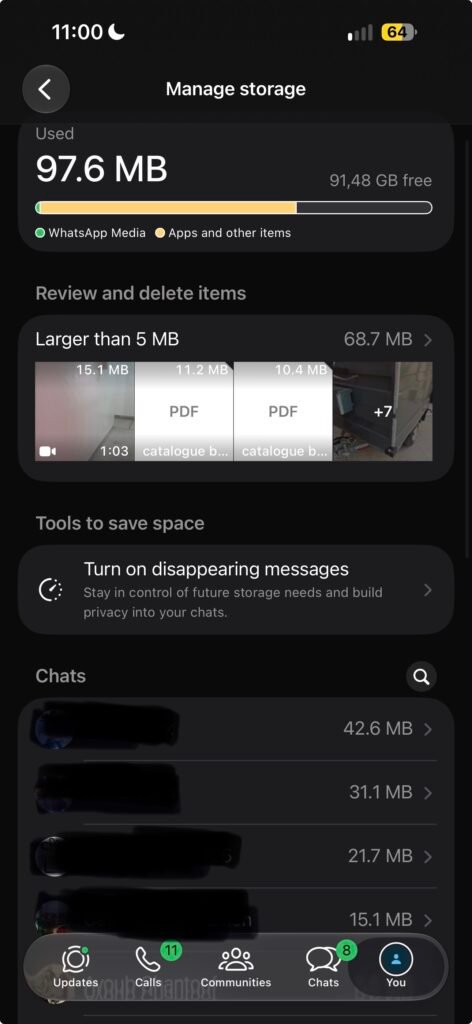
Method 5: Clean Up WhatsApp Storage
WhatsApp saves every photo, video, and voice note you receive.
- Open WhatsApp.
- Tap Settings → Storage and Data → Manage Storage.
- Review the largest chats and files, select what you don’t need, and delete them.
Also consider turning off automatic media download in Storage and Data so new files don’t fill your phone again.
Method 6: Clear Safari History and Website Data
- Go to Settings → Apps → Safari.
- Tap Clear History and Website Data.
- Confirm.
This signs you out of some websites, but it can free up space and make Safari run faster.
Method 7: Remove Downloaded Music, Videos, and Podcasts
Downloaded content from apps like Apple Music, Spotify, Netflix, or Podcasts is stored on your phone. Open each app and remove downloads you’ve already watched or listened to. In iPhone Storage, tapping Music or Podcasts also lets you remove downloads directly.
Method 8: Restart Your iPhone
After deleting files, restart your iPhone. This helps clear temporary files and refreshes the storage numbers.
- Press and hold the side button and either volume button.
- Drag the slider to turn off.
- Wait 30 seconds, then hold the side button to turn it on.
Tips to Keep Your iPhone Storage Free
- Check iPhone Storage once a month to catch large apps early.
- Turn off automatic media download in WhatsApp and other messaging apps.
- Back up photos and videos to iCloud or your Mac regularly.
- Delete screenshots you no longer need, since they add up quickly.
- Don’t install “cleaner” apps from unknown developers; iPhone already has the tools you need.
Frequently Asked Questions
What is “System Data” in iPhone Storage?
System Data includes caches, logs, and temporary files used by iOS. It changes size on its own. Restarting your iPhone and clearing app caches can sometimes reduce it.
Will offloading an app delete my data?
No. Offloading removes only the app itself. Your documents and settings stay on your iPhone and return when you reinstall the app.
How much free storage should I keep on my iPhone?
Try to keep at least a few gigabytes free. Your iPhone needs space for updates, temporary files, and smooth performance.
Does deleting photos from iPhone delete them from iCloud?
If iCloud Photos is turned on, yes. Deleting a photo on your iPhone also deletes it from iCloud and your other devices.
Conclusion
Freeing up storage on your iPhone doesn’t require deleting your favorite photos or apps. Start by checking iPhone Storage, then offload unused apps, empty Recently Deleted, and clean up messages and WhatsApp. These steps alone can usually recover several gigabytes.
Before making big changes, it’s a good idea to back up your iPhone to iCloud so your important data stays safe.