
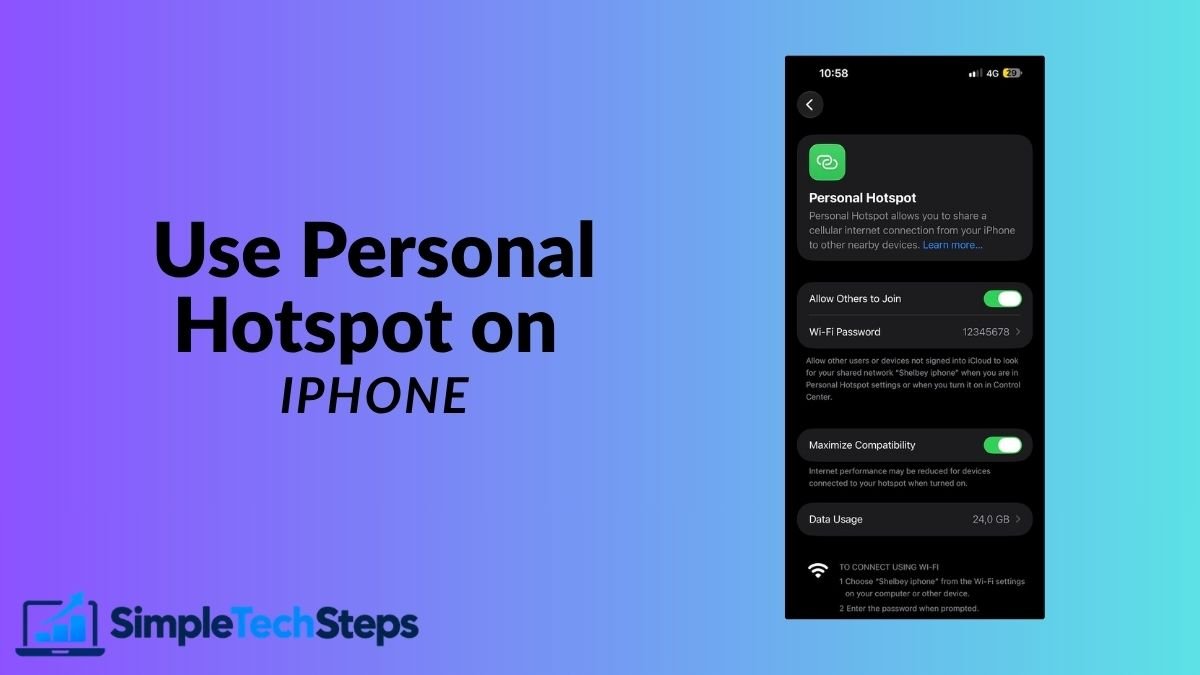
Your iPhone’s mobile data connection can be shared with your Mac, tablet, or any other device, turning your iPhone into a portable Wi-Fi router. This is Personal Hotspot, and it’s built into every iPhone at no extra cost, though your mobile plan needs to support it.
This guide covers how to set it up, connect every type of device, use Instant Hotspot with your Mac, manage your data, and fix the common problems.
Quick Answer
To turn on Personal Hotspot, go to Settings → Personal Hotspot and turn on Allow Others to Join. Your iPhone broadcasts a Wi-Fi network with the name of your iPhone. Connect other devices using the password shown on that screen. Your Mac can connect without the password using Instant Hotspot if both are signed in to the same Apple Account.
What You Need Before You Start
- A mobile data plan that includes tethering or hotspot use. Check with your provider if unsure.
- Mobile data turned on: Settings → Mobile Data.
- Battery life to spare. Running a hotspot drains your battery quickly.
- The devices you want to connect nearby.
Step 1: Turn On Personal Hotspot
- Open Settings.
- Activate Cellular first.
- Tap Personal Hotspot.
- Turn on Allow Others to Join.
Your iPhone now broadcasts a Wi-Fi network with the same name as your iPhone.

On my iPhone 14 Pro Max, turning on the hotspot took one second and the network appeared on my Mac immediately.
Step 2: Find Your Hotspot Password
On the same Personal Hotspot screen, you’ll see Wi-Fi Password with a password below it.
Tap Wi-Fi Password to see it clearly, or to change it to something easier to type.
Use a password of at least 8 characters. Don’t leave it as the default if it’s too complex to type on another device.

Step 3: Connect Your Mac via Wi-Fi
- On your Mac, click the Wi-Fi symbol in the menu bar.
- Look for your iPhone’s name in the network list.
- Click it and enter the password from Step 2.
- Click Join.
Once connected, a small chain-link icon appears in your Mac’s menu bar, confirming a hotspot connection.

Instant Hotspot: Connect Without a Password
If your iPhone and Mac are signed in to the same Apple Account, you don’t need to type the password.
- On your Mac, click the Wi-Fi symbol.
- Your iPhone appears under a separate heading, usually showing its battery and signal level.
- Click it to connect. No password needed.
This is called Instant Hotspot. Your iPhone’s Personal Hotspot turns on automatically when your Mac selects it, so you don’t even need to go into Settings first.
If Instant Hotspot isn’t showing, check that both devices have Bluetooth on, are signed in to the same Apple Account, and that AirDrop is not set to No One on the iPhone.

Connect Other Devices
Windows PC or Android: find your iPhone’s name in the Wi-Fi list and enter the password.
USB connection (saves battery): connect your iPhone to your Mac with a cable. The iPhone appears as a network option in the Mac’s System Settings → Network sidebar. Click it and select Connect via USB.
Bluetooth connection: pair the devices first via Bluetooth, then connect from the Mac’s network settings. Bluetooth is slower but uses less battery than Wi-Fi hotspot.
Managing Your Data While on Hotspot
Mobile data is finite. A few habits help:
- On your Mac, turn off automatic updates while on a hotspot. Go to System Settings → General → Software Update → Automatic Updates and pause them.
- Tell macOS you’re on a limited connection: go to System Settings → Wi-Fi, click the (i) next to your iPhone’s hotspot, and turn on Low Data Mode.
- Avoid streaming video in high quality while hotspotting.
- Watch your data in Settings → Mobile Data on your iPhone, which shows usage per app.
Fixing Personal Hotspot Problems
My iPhone’s network doesn’t appear on other devices.
Make sure Allow Others to Join is turned on, mobile data is on, and the Personal Hotspot screen stays open on the iPhone while you connect the other device.
Instant Hotspot isn’t showing on my Mac.
Both devices must be signed in to the same Apple Account, have Bluetooth and Wi-Fi on, and AirDrop must not be set to No One. Toggle Bluetooth off and on on both devices.

The hotspot connects but is very slow.
This is usually low mobile signal. Check the signal bars on your iPhone. Moving to a window or outside often helps. Also check that no other devices are connected and using data at the same time.
The hotspot keeps disconnecting.
iOS turns off the hotspot automatically when no devices are connected for a while, to save battery. Reconnect from the other device and it turns back on. To prevent the iPhone from sleeping during a session, tap the screen occasionally or set Screen Time to keep the display on longer.
My provider says hotspot isn’t included.
Some mobile plans don’t include tethering or charge separately for it. Contact your provider. If tethering is available but blocked, a SIM card setting or a profile update from your provider may be needed.
Battery and Heat Tips
A Personal Hotspot uses significantly more battery than normal use, because both the mobile radio and the Wi-Fi antenna are active simultaneously.
- Keep your iPhone plugged in while hotspotting for long sessions.
- If the iPhone gets hot, it may reduce hotspot speed to cool down.
- Turn off the hotspot as soon as you’re done; leaving it on drains the battery even with no devices connected.
Our guide on how to make your iPhone battery last longer has more tips on reducing battery drain in general.
Frequently Asked Questions
How many devices can connect to my iPhone’s hotspot?
Up to five devices at the same time, though performance drops with more connections.
Does Personal Hotspot cost extra?
It depends on your provider and plan. The feature is free on the iPhone itself; whether your plan allows tethering is a question for your provider.
Can I use Personal Hotspot on a plane?
Only if you’re in an area where mobile data is available. The hotspot uses mobile data, so Airplane Mode disables it.
Does using hotspot drain my iPhone data plan?
Yes. Everything the connected device downloads comes from your iPhone’s data plan.
Is a hotspot connection secure?
Yes, WPA2 encryption is used by default. Use a strong password and don’t leave the hotspot open to anyone.
Conclusion
Personal Hotspot is one of the most useful features your iPhone has for staying connected when home Wi-Fi isn’t available. Instant Hotspot makes connecting your Mac effortless, and USB connection saves battery for long sessions.
If you’re at home with slow Wi-Fi rather than no Wi-Fi, our guide on how to improve Wi-Fi signal at home may fix the root problem without needing your hotspot at all.