
Running a speed test seems simple: open a website, click a button, get a number. But a single test result is often misleading, and testing in the wrong way gives you a number that has nothing to do with the real problem you’re trying to diagnose.
This guide shows you how to test properly, what download speed, upload speed, and ping each mean for different activities, and what to do when your results don’t match what you’re paying for.
Quick Answer
To check your internet speed correctly, connect your Mac to the router with an Ethernet cable, go to fast.com or speedtest.net, and run the test. Compare this to your plan speed. Then test over Wi-Fi on your iPhone for comparison. Running both tests tells you whether the problem is your internet connection or your Wi-Fi setup.
What the Three Numbers Mean
Before testing, understand what you’re measuring.
Download speed (Mbps): how fast data arrives at your device. This affects web browsing, streaming, and downloads. Higher is better.
Upload speed (Mbps): how fast your device sends data. This affects video calls, uploading files, and live streaming. Often lower than download speed on home plans.
Ping (ms): how long it takes for a signal to travel to a server and back. Lower is better. High ping causes lag in video calls and online games, regardless of speed.
The Right Way to Test
Most people test incorrectly and get a misleading result. Here is the proper method.
Test 1: Wired from the router (your baseline)
- Connect your Mac to the router with an Ethernet cable.
- Close all other apps and browser tabs.
- Make sure no one else on the network is downloading or streaming.
- Go to fast.com or speedtest.net.
- Run the test. Write down the download speed, upload speed, and ping.
This is your true internet speed, unaffected by Wi-Fi. Compare it to the speed on your plan.

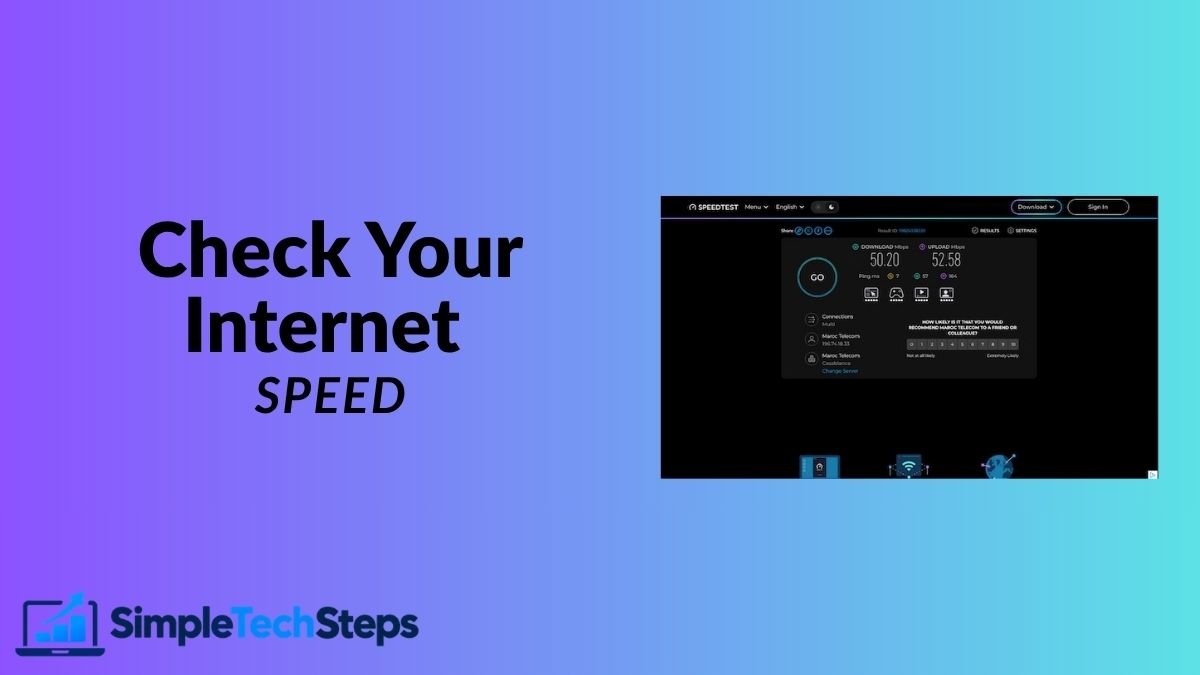
On my Mac connected by cable, I got 50.20 Mbps download, which matched my 60 Mbps plan closely.
Test 2: Wi-Fi from your iPhone, next to the router
- Connect your iPhone to the same Wi-Fi network, standing in the same room as the router.
- Go to fast.com in Safari.
- Run the test.
If this result is close to the wired result, your router’s Wi-Fi is working well. If it’s significantly lower, your router may be the bottleneck.

Test 3: Wi-Fi from the problem location
If you have a specific room or device with slow internet, test from there.
- Move your iPhone to that location.
- Run the test again.
- Compare this to the router-room result.
A large drop confirms that the issue is Wi-Fi coverage, not the internet connection itself. Our guide on how to improve Wi-Fi signal at home covers the fixes.
Test Your Mobile Data Separately
- Turn Wi-Fi off on your iPhone.
- Run a speed test.
- Note the mobile data speed.
This tells you what speed you get on 4G or 5G. If you use Personal Hotspot on your iPhone to share data with your Mac, this is the speed your Mac will receive.
What Speeds Do You Actually Need?
These are the minimum speeds for common activities, per device.
| Activity | Minimum Download | Recommended |
|---|---|---|
| Standard video call | 1 Mbps | 3 Mbps |
| HD video call (Zoom, FaceTime) | 3 Mbps | 8 Mbps |
| Netflix HD | 5 Mbps | 10 Mbps |
| Netflix 4K | 15 Mbps | 25 Mbps |
| Music streaming | 0.5 Mbps | 1 Mbps |
| Online gaming (ping matters more) | 3 Mbps | 10 Mbps |
If your household has multiple people using the internet at the same time, multiply these requirements accordingly.
What to Do If Your Speed Is Lower Than Expected
If the wired speed is far below your plan speed:
Contact your provider. The problem is on their side, at the modem, or in the line. Document your test results with screenshots to show them.
If the wired speed matches the plan but Wi-Fi is slow:
The problem is your home Wi-Fi setup, not the internet. See our guide on how to improve Wi-Fi signal at home.
If Wi-Fi is fine near the router but slow elsewhere:
Coverage is the issue. A Wi-Fi extender or mesh system is the solution.
If everything is slow at certain times of day:
Network congestion is likely. Many providers slow down in the evening when usage peaks. This is a plan or provider limitation.
If ping is very high even with good speeds:
High ping affects video calls and gaming more than downloads do. A wired connection almost always reduces ping. Also check whether any app is running a large download in the background.
Getting Consistent Results
One test is unreliable. For an accurate picture:
- Run three tests, one minute apart, and average the results.
- Test at different times of day, since evening speeds are often lower.
- Always close other apps and stop downloads before testing.
- Use the same test site each time so results are comparable.
Keep a note of your results with dates. When you call your provider to complain about slow speeds, a week of documented results is far more convincing than a single screenshot.
Frequently Asked Questions
What is a good internet speed for a home?
For one or two people with typical use, 50–100 Mbps download is comfortable. For a household with several people streaming, gaming, and video calling simultaneously, 200–500 Mbps is better.
Why is my speed test result lower than my plan speed?
No connection delivers its advertised maximum constantly. 70–80% of the plan speed is a realistic result. Below 50% consistently suggests a problem worth investigating.
Does the speed test server location affect the result?
Yes. Choose a test server in your country or region for the most relevant result. Most tools do this automatically.
Does running a speed test use a lot of data?
Each test uses about 50–200 MB, which is worth considering if you’re on a limited mobile data plan.
Is fast.com or speedtest.net better?
Both are reliable. Fast.com (run by Netflix) measures download speed simply and quickly. Speedtest.net shows more detail, including upload speed and ping. Use both for a complete picture.
Conclusion
The correct approach is two tests: wired from the router for your true baseline, then Wi-Fi from your iPhone to see what the wireless network delivers. The gap between the two tells you exactly where to focus.
If the wired speed is fine but Wi-Fi is disappointing, our guide on how to improve Wi-Fi signal at home is the next step. If both connections seem fine but things still don’t load, check our guide on iPhone connected to Wi-Fi but no internet for the causes that speed tests don’t catch.