
You restart your Mac, and before you can do anything, a chat app, a cloud sync tool, a music player, and three apps you’ve never heard of all open at once. Each one uses memory and processor power, so your Mac feels slow for the first few minutes, and sometimes all day.
These are called login items, and you control them. This guide shows you where to find them, which ones are safe to switch off, and how to stop an app from opening itself again.
Quick Answer
To manage startup apps on Mac, open System Settings → General → Login Items & Extensions. Under Open at Login, select an app and click the minus (–) button to stop it opening at startup. Under Allow in the Background, switch off helper processes you don’t need.
Why Startup Apps Matter
Every app that launches at login competes for your Mac’s memory and processor while it’s still starting up. A few small apps won’t matter, but ten of them will noticeably slow down startup and keep using resources afterwards.
Many apps add themselves to your login items during installation without asking, which is why this list tends to grow over the years.
Step 1: Open the Login Items Screen
- Open System Settings from the Apple menu.
- Click General in the sidebar.
- Click Login Items & Extensions.
You’ll see two main lists: Open at Login (apps that visibly launch) and Background App Activity (helper processes that run unseen).
On older macOS (Monterey and earlier): go to System Preferences → Users & Groups → your username → Login Items.
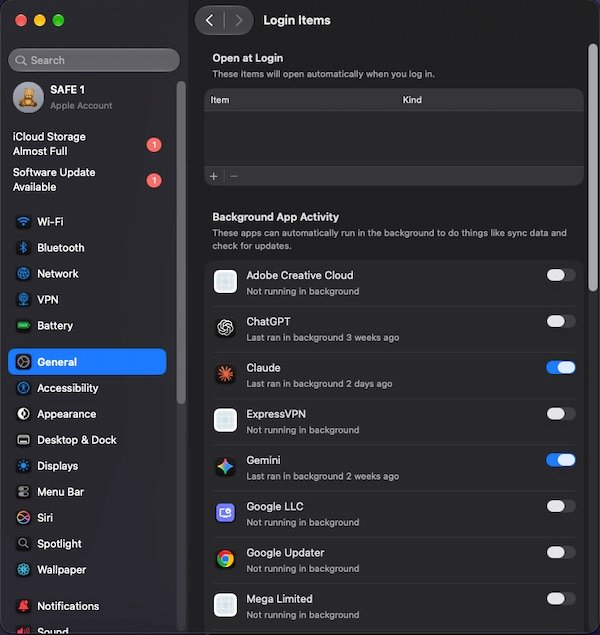
When I checked my Mac, I found 0 apps opening at login and two running in background.
Step 2: Remove Apps from Open at Login
- Under Open at Login, click an app you don’t need straight away.
- Click the minus (–) button below the list.
The app stays installed. It just won’t launch by itself anymore, and you can still open it manually whenever you want.
Good candidates to remove: music players, chat apps you open rarely, game launchers, and update tools for software you hardly use.
Step 3: Control Apps Allowed in the Background
This list is different. These are helper processes that run silently, often to sync files, check for updates, or keep a service running. Each has a toggle switch.
- Scroll down to Allow in the Background.
- Read the name and developer under each item.
- Switch off items from apps you’ve uninstalled or never use.
Be careful with this list. Leave on anything from Apple, your security software, your backup or cloud sync tools that you rely on, and printer or scanner software you use. If you switch something off and an app stops working properly, just turn it back on.

Step 4: Add or Remove an App from the Dock
You can also change this directly from the Dock.
- Right-click (or Control-click) the app’s icon in the Dock.
- Hover over Options.
- Tick or untick Open at Login.
This is the quickest method for apps that are currently running.

Step 5: Check the App’s Own Settings
Some apps reopen themselves from their own setting, even after you remove them from the list. Open the app, go to its Settings (or Preferences), and look for an option like Launch at login, Start at startup, or Open when computer starts. Untick it.
This is most common in messaging apps, cloud storage apps, and VPN tools.
Step 6: Add an App You Want to Start Automatically
Some apps are worth opening at login, such as a password manager or a menu bar tool you use every day.
- In Login Items & Extensions, click the plus (+) button under Open at Login.
- Select the app from your Applications folder.
- Click Open.
Skip Login Items for One Restart
If your Mac is struggling to start because of a problem app, you can bypass login items just once.
- Restart your Mac.
- Enter your password and click Log In.
- Immediately hold the Shift key until the Dock and Desktop appear.
Nothing is changed permanently, so it’s a safe way to test whether a login item is causing trouble.
Which Apps Are Safe to Disable?
Usually safe: music and video players, chat and social apps, game launchers, app updaters, and tools you rarely open.
Keep enabled: anything from Apple, security and antivirus tools, backup software, and the cloud sync apps you depend on.
If you’re unsure about an unfamiliar name, search for it online before switching it off, or leave it alone. If it belongs to an app you’ve already deleted, our guide on how to uninstall apps on your Mac completely shows how to clear out what’s left behind.
Tips
- Check this list every few months, since new apps add themselves quietly.
- After installing any new app, look for a Launch at login option in its settings.
- Restart after making changes to confirm everything works.
- Fewer login items also helps your Mac run well all day, as covered in our guide on how to speed up a slow Mac.
Frequently Asked Questions
Does removing a login item delete the app?
No. It only stops the app opening automatically. The app remains in your Applications folder.
Why does an app keep coming back after I removed it?
Usually the app’s own settings re-add it. Open the app and untick its Launch at login option.
Will fewer startup apps make my Mac start faster?
Yes. Your Mac reaches a usable state sooner, because fewer apps compete for resources while it’s loading.
What’s the difference between Open at Login and Allow in the Background?
Open at Login lists apps that visibly open. Allow in the Background lists helper processes that run silently.
Can I do this on a Mac with older macOS?
Yes. On Monterey and earlier, use System Preferences → Users & Groups → Login Items.
Conclusion
Open Login Items & Extensions, remove the apps you don’t need at startup, and switch off background helpers from software you no longer use. It takes five minutes and gives you a faster, cleaner start every time.
If your Mac is still slow afterwards, work through our full guide on how to speed up a slow Mac.