

A “Your startup disk is almost full” message is your Mac’s way of telling you that performance is about to suffer. macOS needs free space to work properly, for temporary files, memory swap, updates, and more. When the drive gets full, everything slows down.
The good news is that a few gigabytes are almost always hiding in places most people never check, such as old iPhone backups, forgotten downloads, and caches left by apps you no longer use.
Quick Answer
To free up storage on Mac, open System Settings → General → Storage, check the colour-coded bar, and work through the built-in recommendations. Then manually delete old iPhone backups in Finder, empty the Downloads folder, remove large files you no longer need, clear app caches in the Library, and uninstall apps you don’t use.
Step 1: See What’s Using Your Space
- Open System Settings.
- Click General.
- Click Storage.
- Wait for the bar to calculate.
Hover over each colour to see what category it represents. The biggest categories deserve your attention first.
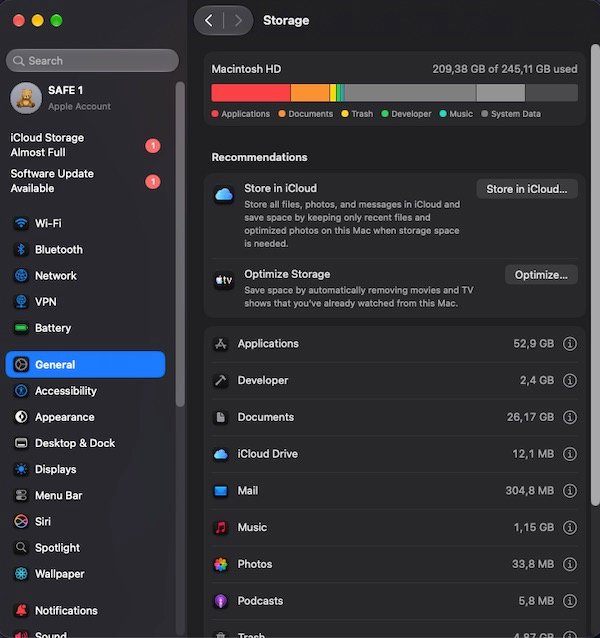
On my Mac, the Applications and Documents sections were taking up much more space than I expected.
Method 1: Follow the Built-In Recommendations
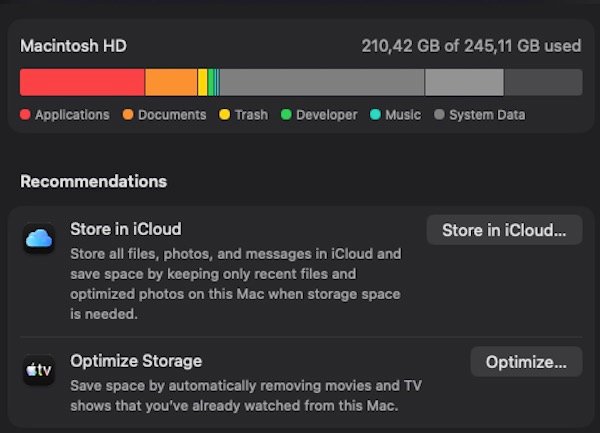
macOS shows personalised recommendations at the top of the Storage screen.
- Click each recommendation to review it.
- Store in iCloud moves files you haven’t opened recently to iCloud. Useful if you have iCloud storage to spare.
- Optimize Storage removes watched Apple TV films and old email attachments automatically.
- Empty Bin Automatically deletes items in the Bin after 30 days.
- Reduce Clutter shows large and old files for review.
Method 2: Find and Delete Large Files
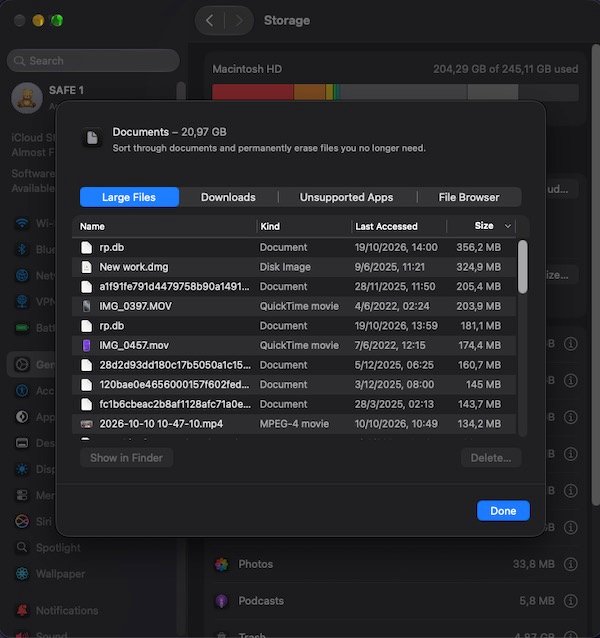
- In System Settings → Storage, click the information icon next to Documents.
- Click Large Files.
- Sort by size.
- Delete anything you no longer need, particularly old video files, disk images (.dmg), and zip archives you already extracted.
Also open your Downloads folder in Finder, sort by Size, and delete files you downloaded months ago.
Method 3: Uninstall Apps You Don’t Use
Apps themselves take space, but their support files often take more.
- In System Settings → Storage, click the information icon next to Applications.
- Sort by size.
- Delete apps you haven’t opened in months.
For a complete removal that also clears the leftover files in the Library, follow our full guide on how to uninstall apps on your Mac completely.
Method 4: Empty the Bin
Deleted files stay on your drive until the Bin is emptied.
- Right-click the Bin in the Dock.
- Choose Empty Bin.
- Confirm.
If the Bin seems stuck or takes a long time, restart your Mac first.

Method 5: Clear App Caches
Apps build up large cache folders over time. These are safe to delete.
- In Finder, hold Option and click Go in the menu bar.
- Click Library.
- Open the Caches folder.
- Move folders named after apps you use heavily to the Bin and empty it.
Be careful not to delete the Caches folder itself, only its contents. Your apps will rebuild their caches as needed.
Method 6: Clean Up Your Desktop and Screenshots
Every file on the Desktop is rendered constantly and takes space.
- Move large files from the Desktop into folders inside Documents.
- Open your Pictures → Screenshots folder if you have one, and delete screenshots you no longer need.
- Check Photos → Recently Deleted in the Photos app and empty it.
Method 7: Manage iCloud Drive
Files you store in iCloud Drive are downloaded to your Mac when you open them and stay there unless macOS removes them.
- Open Finder → iCloud Drive.
- Right-click files you don’t need locally and choose Remove Download.
- The file stays in iCloud but is removed from your Mac’s local storage.
Method 8: Check and Reduce System Data
System Data includes caches, logs, and temporary files created by macOS. You can’t control most of it directly, but a few things help.
- Restart your Mac, which clears some temporary files automatically.
- Update macOS; some updates reduce System Data.
- Clear browser caches: in Safari, go to Safari → Settings → Privacy → Manage Website Data → Remove All. In Chrome, go to chrome://settings/clearBrowserData, choose All Time, and clear cached images and files.
How Much Free Space Do You Need?
Keep at least 10–15% of your drive free. On a 256 GB Mac, that’s about 25–38 GB free. Below 10 GB, performance suffers noticeably. Below 5 GB, macOS may warn you and some tasks will fail.
Frequently Asked Questions
What is “System Data” in Mac storage?
System Data is a catch-all for caches, logs, temporary files, and things macOS can’t categorise elsewhere. It can be reduced by clearing caches and restarting, but some of it is normal and necessary.
Is it safe to delete files from the Library folder?
Cache files in the Caches folder are safe to delete. Preferences and Application Support files should only be removed after you’ve already uninstalled the app they belong to.
Will deleting iPhone backups from my Mac affect my iPhone?
No, as long as iCloud Backup is turned on and working. Only delete Mac backups once you’ve confirmed that a recent iCloud backup exists.
Why does my Mac fill up again quickly?
Usually a cloud sync app, a media app, or a browser cache is the culprit. Check Activity Monitor for apps writing large amounts of data, and check the Storage screen monthly.
Can I move my Photos library to an external drive?
Yes, and it’s one of the best ways to free up significant space on a Mac with a large photo collection. Hold Option while opening the Photos app to choose a different library location.
Conclusion
Start with the Storage screen recommendations, then check for old iPhone backups, and clear the Downloads folder. Those three steps usually recover the most space in the least time.
The same habit of checking what’s using space first works on your iPhone too; our guide on how to free up storage on your iPhone uses the same approach. And if your Mac is still feeling slow after freeing space, our guide on how to speed up a slow Mac covers the next steps.